How to Create a Listing on Ghecs as a Host (Step-by-Step Guide 2026)
Ghecs
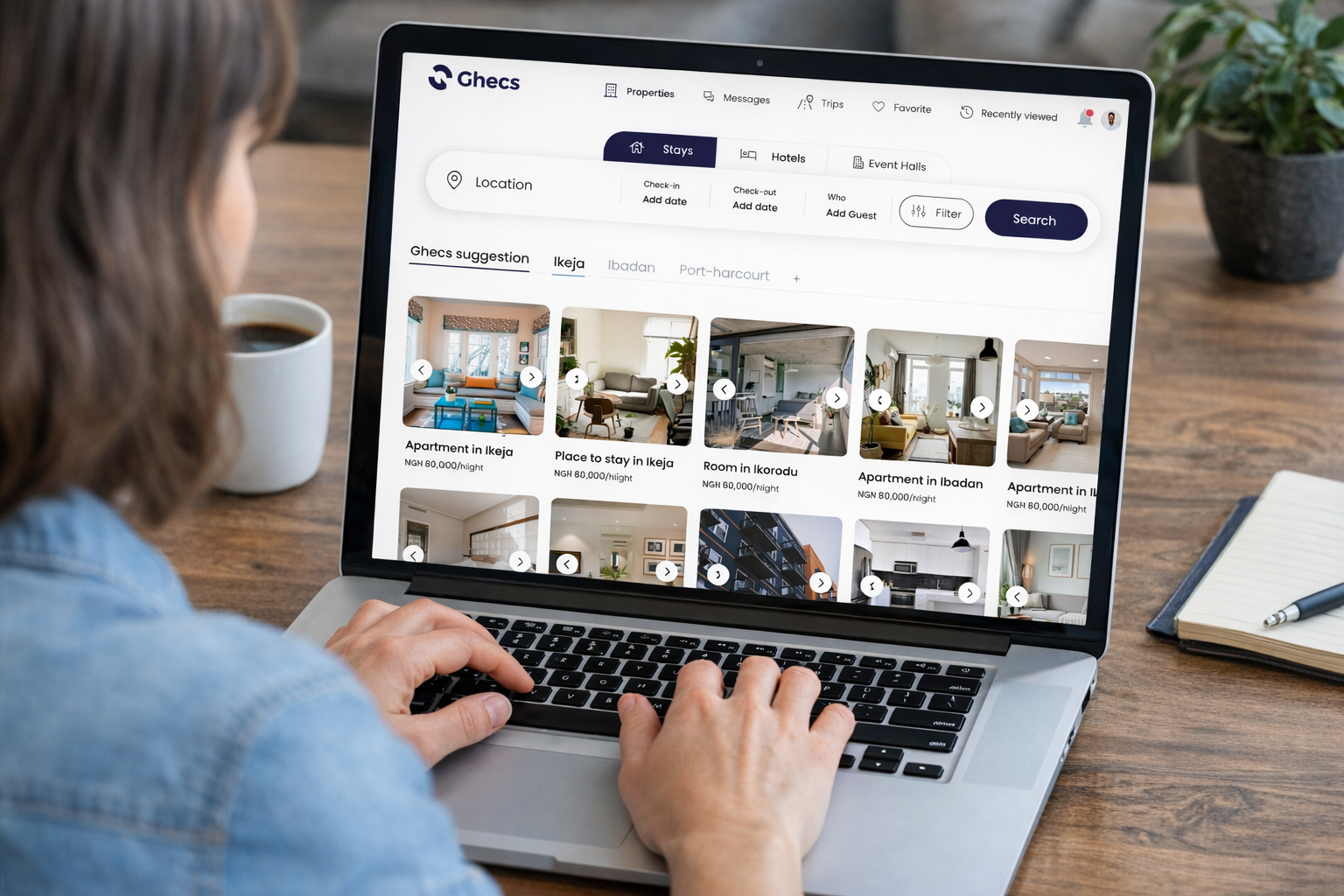
Ready to start earning from your property? Whether you own a shortlet apartment in Lagos, a hotel in Abuja, an event hall in Port Harcourt, or even a rental car — listing on Ghecs.com puts you in front of thousands of travelers actively searching for verified, comfortable stays across Nigeria.
This guide walks you through every single step of creating a listing on Ghecs as a host — from choosing your account type to getting your KYP verification approved and going live. Screenshots are included at each stage so you know exactly what to expect.
Why Host on Ghecs?
Reach thousands of verified travelers nationwide
Secure in-app payments - no cash stress
Manage bookings from one simple dashboard
Flexible cancellation policy options
List shortlets, hotels, event halls, or cars
KYP verification builds guest trust
Instant Book or Request-to-Book flexibility
Full control over pricing and house rules
Step-by-Step
Creating Your Listing on Ghecs
1. Sign Up or Sign In
Visit ghecs.com or download the Ghecs app and create your free account. Already registered? Sign in with your email and password. You can also sign in quickly with Google or Facebook.
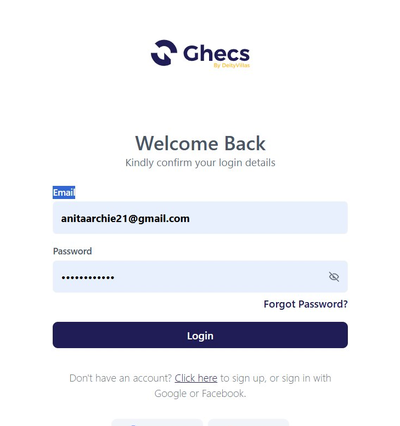
B. Choose Your Account Type - After signing in, look for the "Switch to" option at the top right of the screen and select your account type:
Guest — for travelers booking stays, spaces, or cars
Host — for property owners who want to list and earn
Agent — for real estate agents managing multiple properties
Click Host to switch into host mode.

💡 Pro Tip: You can switch between Guest, Host, and Agent modes at any time no need to create separate accounts.
C . Identity Verification.
If you haven't verified before, a one-time identity verification prompt will appear. This is required before you can publish any listing. Select one of the three accepted government-issued IDs:
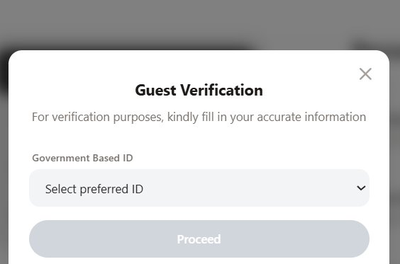
After submitting your ID, you'll complete a facial verification — a quick live selfie that confirms the ID belongs to you. Ghecs captures 3 photos automatically.
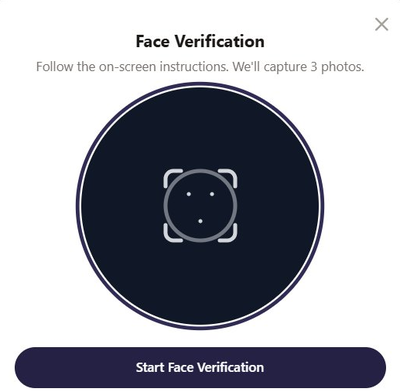
💡 Tip: Sit in a well-lit area for facial verification. Poor lighting is the most common cause of delays. Once verified, you won't need to repeat this.
1. Host Welcome Screen & Start a New Listing - Once verified and switched to Host, you'll see the Host Welcome Screen — a quick tour of everything you can do as a Ghecs host. Click "+ Add your first listing" to begin.
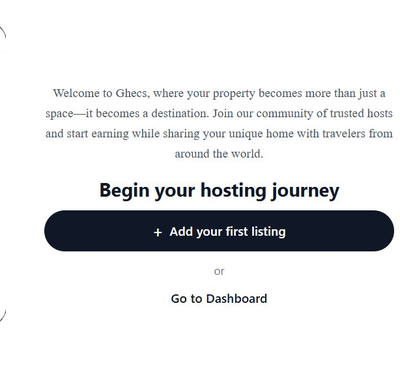
You'll land on the Your Listings page. Tap the "+" icon at the top right to open a brand-new listing form.

💡 Tip: Kindly note that if you have not been verified , you will not be able to list a property.
2. Add a Listing Title - The listing form opens with Title highlighted in the left sidebar. You have up to 50 characters — use them wisely. A great title includes the property type, a standout feature, and the location.
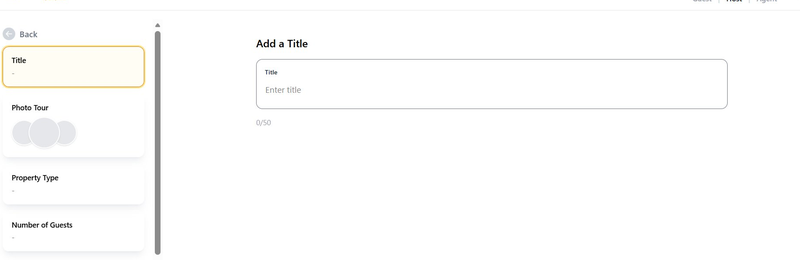
Examples of great titles:
"Stunning 2-Bed Shortlet with Pool — Lekki Phase 1, Lagos"
"Cosy Executive Studio Near Maitama, Abuja"
"Luxury 4-Bed Family Apartment — GRA, Port Harcourt"
3. Upload a Photo Tour - The Photo Tour step lets you upload multiple photos. Drag and drop directly into the upload area, or click to browse your device. Accepted formats: JPG, PNG, WEBP, GIF, BMP, TIFF, AVIF, HEIC — max 10MB each.
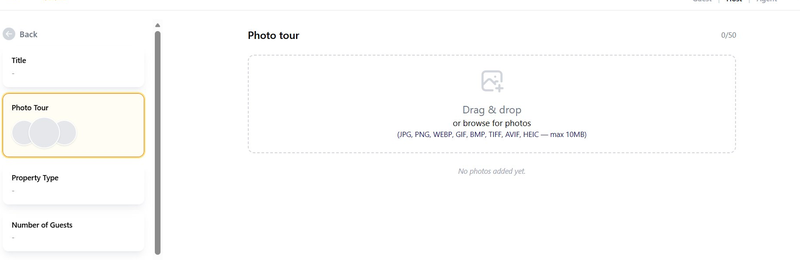
What to photograph:
Living room and common areas
All bedrooms — beds neatly made
Bathroom(s) — clean and well-lit
Kitchen and dining area
Outdoor spaces, balcony, or compound
Unique features — pool, gym, rooftop, smart TV
💡 Photo Tip: Shoot in natural daylight. Properties with 10+ clear photos consistently receive far more bookings on Ghecs than those with fewer images.
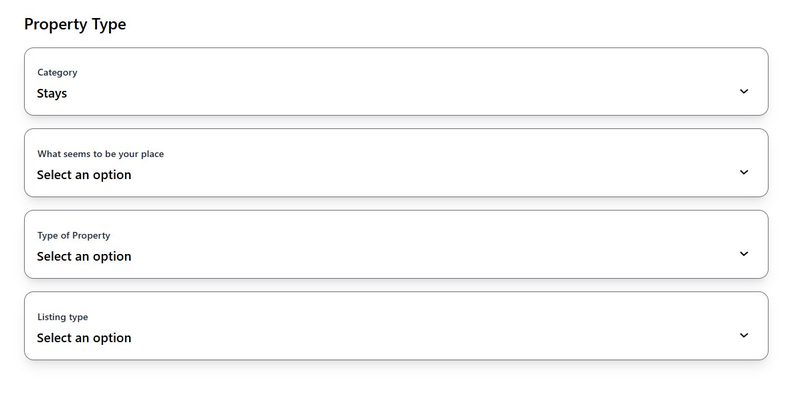
4. Select Your Property Type - On the Property Type step, click the Category dropdown to choose what you're listing. Ghecs supports four main categories:
Stays - Shortlet apartments, houses, studios, villas
Hotels - Registered hotel properties
Event Hall - Venues, conference rooms, party halls
Cars - Rental vehicles for travelers
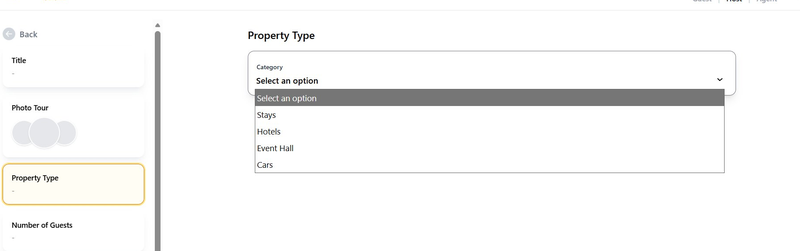
After selecting Stays, three additional sub-dropdowns appear:
(A) What seems to be your place?- Choose the option that best matches - e.g. apartment, bungalow
(B) Type of Property- Select the specific property type - e.g. bungalow, duplex, studio, villa, etc.
(C) Listing Type- Select the specific property type - e.g. Entire place, room, shared room.
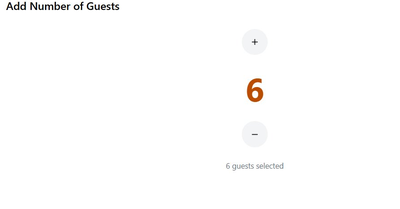
5. Set Maximum Number of Guests - Use the + and − buttons to set the maximum number of guests your property can comfortably accommodate. The selected count appears in orange between the controls.
💡 Tip: Be realistic — factor in beds, bathrooms, and overall comfort. Overcrowded bookings lead to bad reviews that affect your ranking.
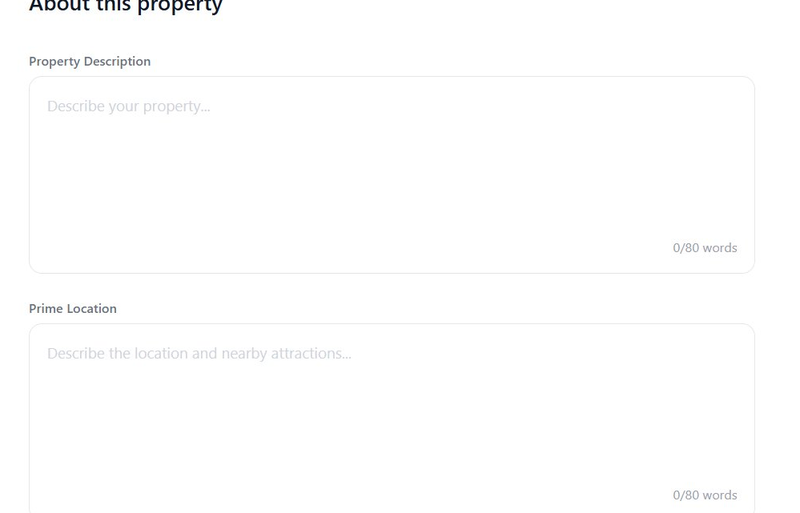
6. Describe Your Property - This is where you sell your space with words. A compelling description can be the difference between a guest choosing your listing or scrolling past. Cover:
Property description - Describe the size, feel, style, and layout
Prime location - What's nearby? (Airport, beach, business district, shopping malls)
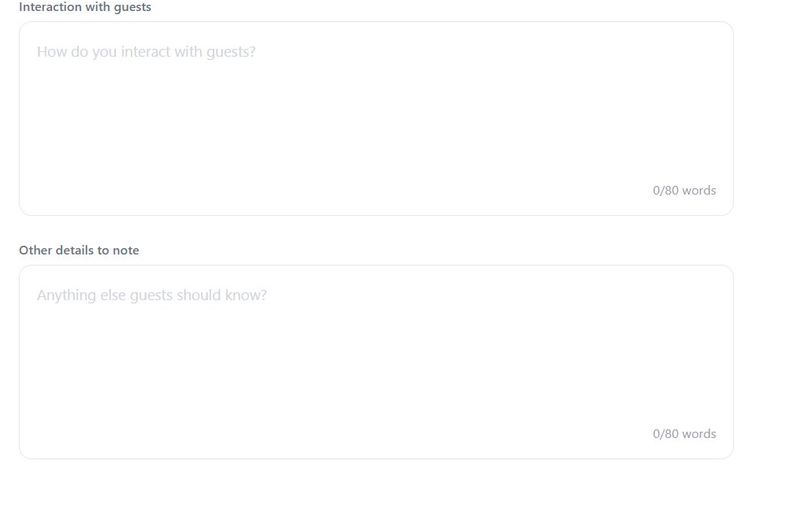
How you interact with guest - Are you on-call? Do you offer a self check-in experience?
Other details to note - it can be Special offers or premium services
Airport pickup, welcome basket, chef services, daily cleaning, etc.
Example description: "Welcome to our modern 2-bedroom shortlets in the heart of Lekki Phase 1. Fully furnished with high-speed Wi-Fi, 24-hour power supply, smart TV, and a fully equipped kitchen. Just 5 minutes from The Palms Mall and 15 minutes from Victoria Island. We offer self check-in and are always available via chat for any support."
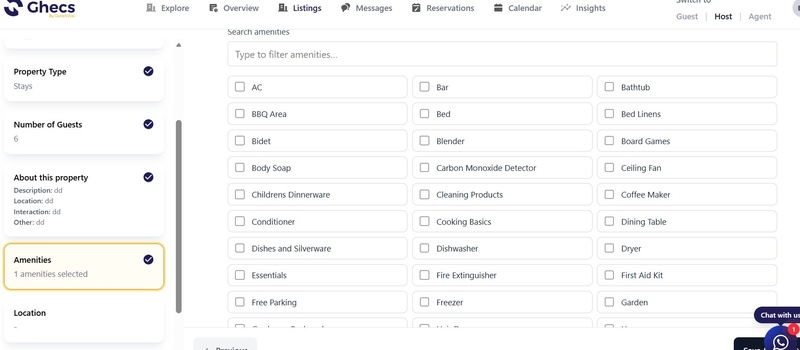
7. Select Your Amenities - The Amenities screen shows a comprehensive grid of every available amenity. Use the search bar to filter quickly, or scroll and tick every amenity your property genuinely offers. Guests frequently filter search results by amenities, so accuracy here directly affects your booking rate.
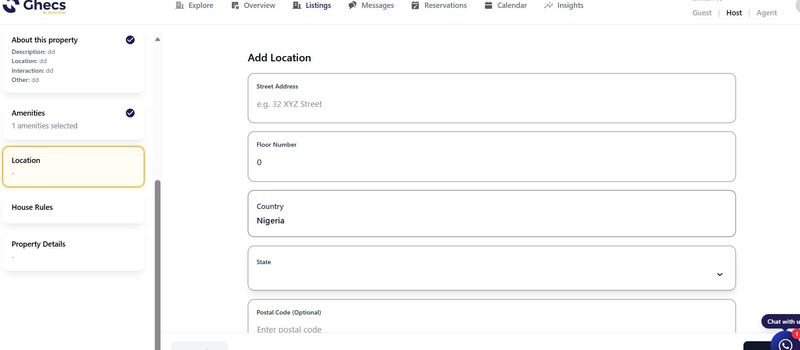
8. Add Your Property Location - Accurate location details are critical. Guests search and filter by location, and Ghecs uses your address to surface your listing in the right results. Fill in all fields carefully:
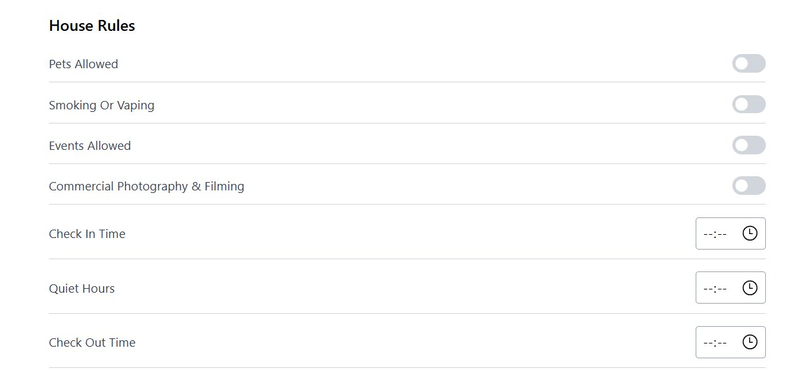
9. Set Your House Rules - House rules protect you and set clear expectations for your guests. Toggle on every rule that applies to your property.
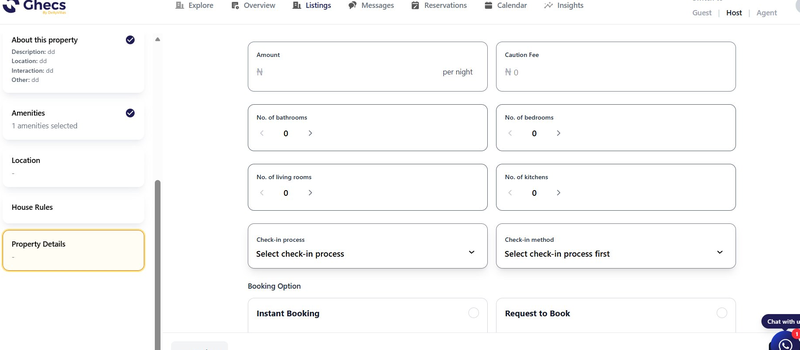
10. Property Details - The Property Details screen is where you configure the full commercial setup of your listing. It covers several important sections:
Amount & Caution Fee - Set your nightly rate in Naira (₦) and your caution/security deposit. The caution fee is held securely and refunded to guests after a damage-free stay.
Number of Rooms - Use the arrow controls to specify the number of bathrooms, bedrooms, living rooms, and kitchens in your property.
Check-in Process & Method - Select your preferred check-in process and the method guests will use to access the property.
Booking Option
Instant Booking - guests confirm immediately without waiting for your approval, maximising occupancy.
Request to Book - you review and approve each guest before confirming, giving you more control.
Scroll down on this same screen to choose your Cancellation Policy. Three options are available - full details for each are shown in the app to help you decide:
11. KYP Verification - Know Your Property- The final step before going live is KYP (Know Your Property) verification. This process confirms that your listing is real, legitimate, and matches what guests will experience. It is what earns you the Ghecs Verified badge - a mark that significantly boosts guest confidence and booking rates.
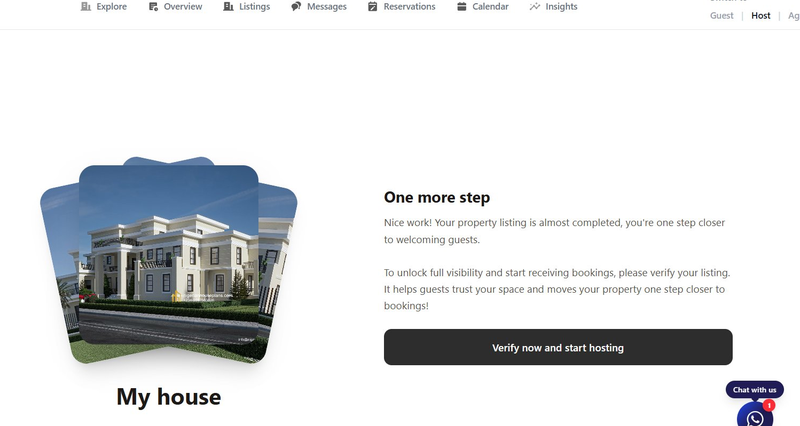
You'll be required to submit two live captures:
Live Shot of a Utility Bill- A real-time photo of any eligible utility bill (electricity, water, etc.) linked to your property address.
Live Shot of the Property - A live, real-time photo of your actual property exterior or interior.
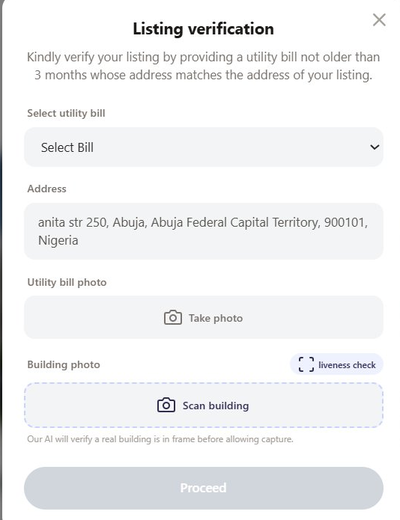
Once your KYP submission is reviewed and approved by the Ghecs team, your listing goes live on the platform visible to thousands of travelers across Nigeria. You'll receive a notification confirming your listing is active.