How to List Your Hotel on GHECS: A Complete Step-by-Step Guide for Hosts
Ghecs
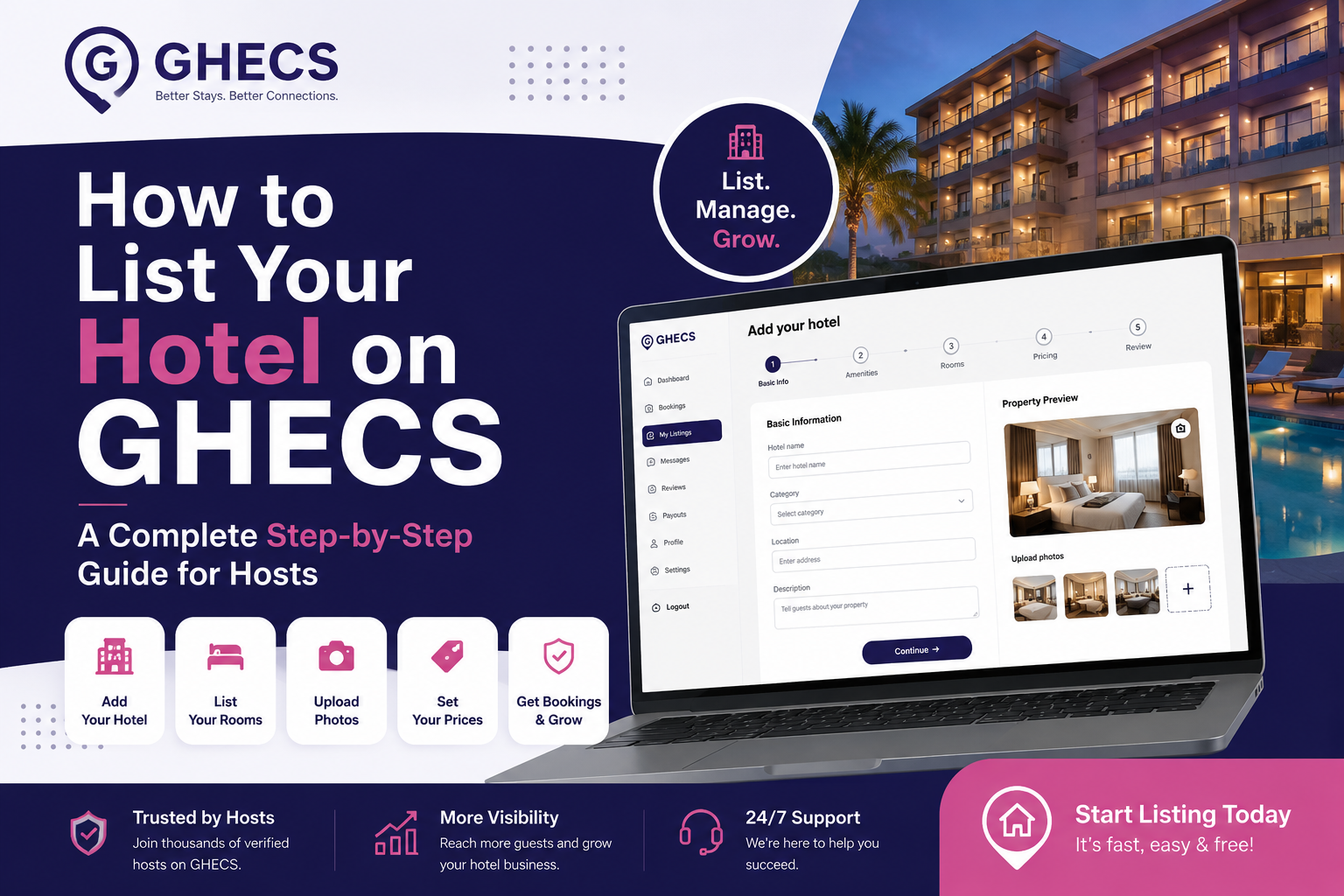
How to List Your Hotel on Ghecs: A Simple Step-by-Step Guide for Nigerian Hosts
Want more bookings for your hotel? Ghecs is Nigeria's growing platform for hotels, shortlets, and event spaces — and getting listed is easier than you think. Here's exactly how to do it.
If you own or manage a hotel in Nigeria and you're not on Ghecs yet, you're leaving money on the table. Ghecs connects Nigerian travelers with quality accommodation across Lagos, Abuja, Port Harcourt, and beyond and the listing process is straightforward enough to complete in one sitting.
This guide walks you through every single step, screen by screen, so you know exactly what to expect.
Step 1: Choose Your Hotel Category
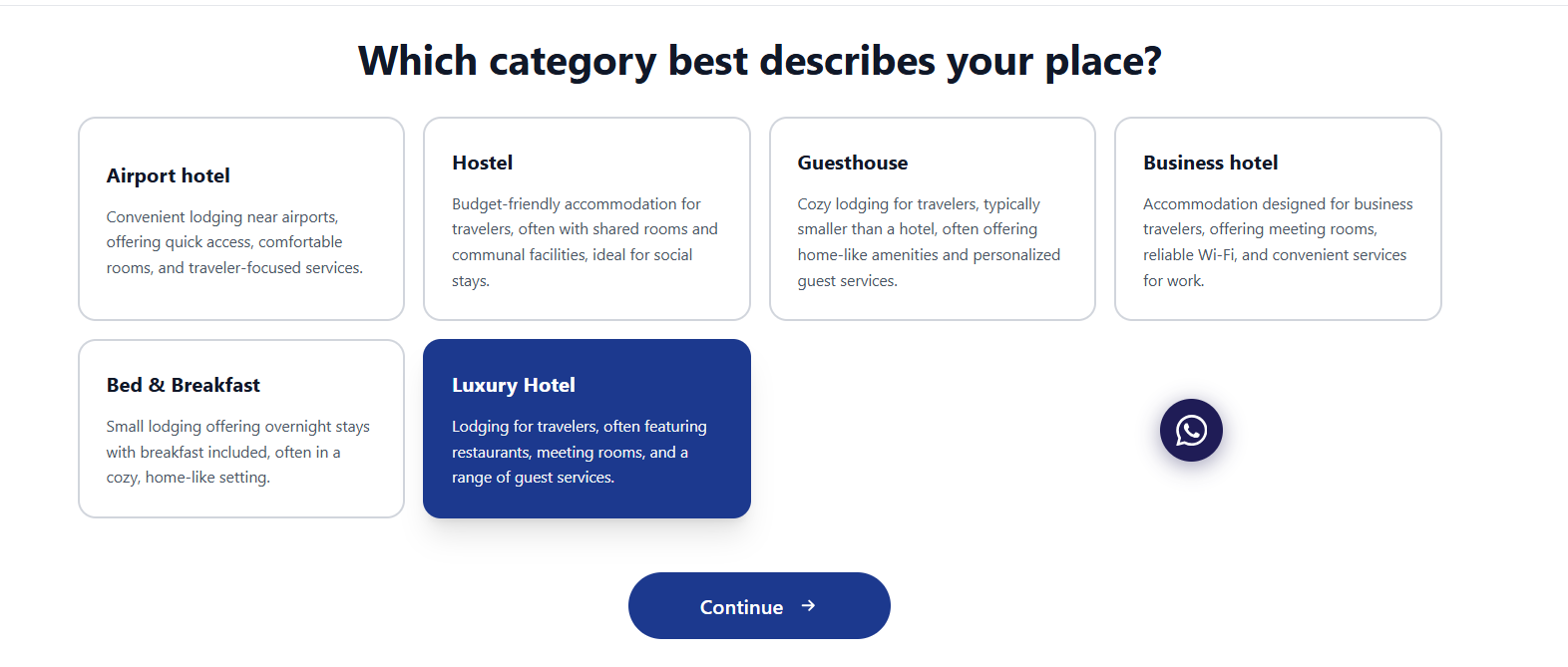
The first thing Ghecs asks is: "Which category best describes your place?"
Your options are:
Airport Hotel
Hostel
Guesthouse
Business Hotel
Bed & Breakfast
Luxury Hotel
(for full-service hotels with restaurants, meeting rooms, and guest services)
Pick the one that best fits your property and click Continue. Choosing the right category matters — it affects how your hotel appears in search results and who finds you.
Step 2: Add Your Hotel Name and Address
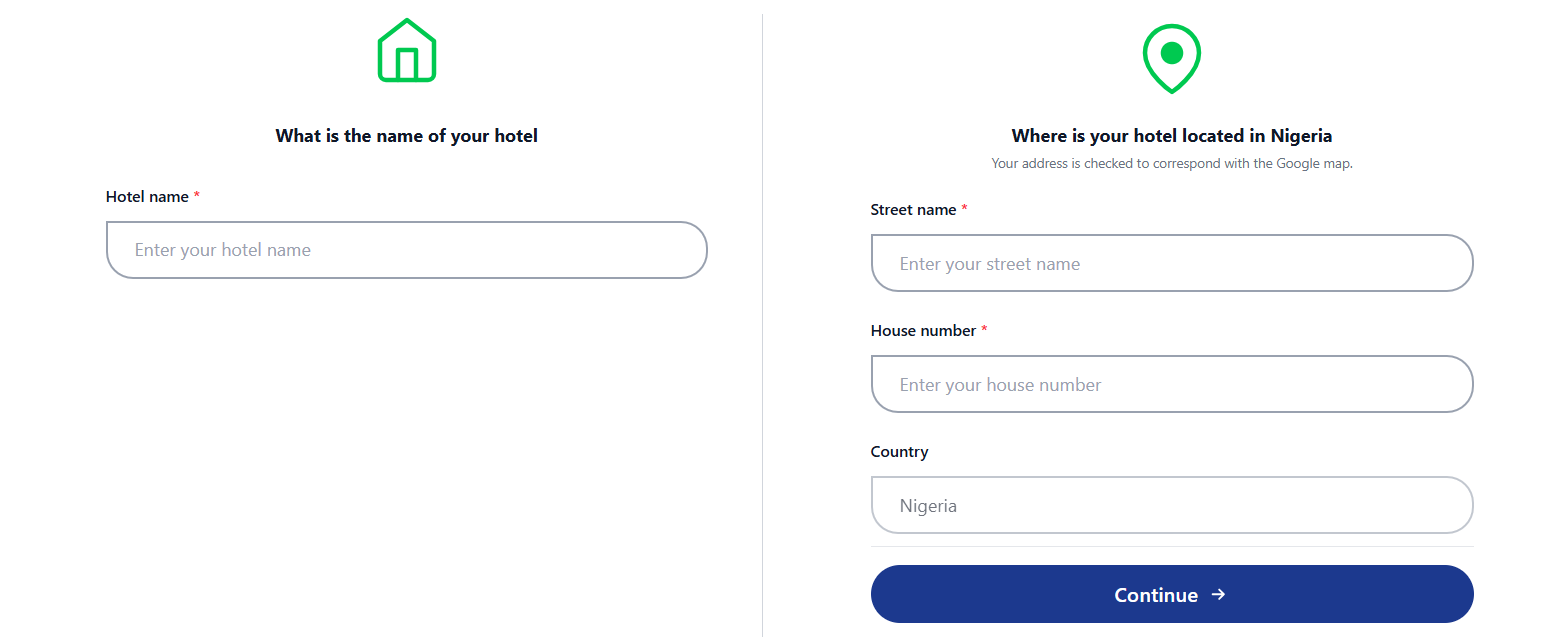
Next, enter your hotel name and location details
Pro tip: As you type your street name and house number, Ghecs automatically pulls in your location data. Make sure your address is accurate — it maps directly to Google Maps.
Step 3: Confirm Your Location on the Map
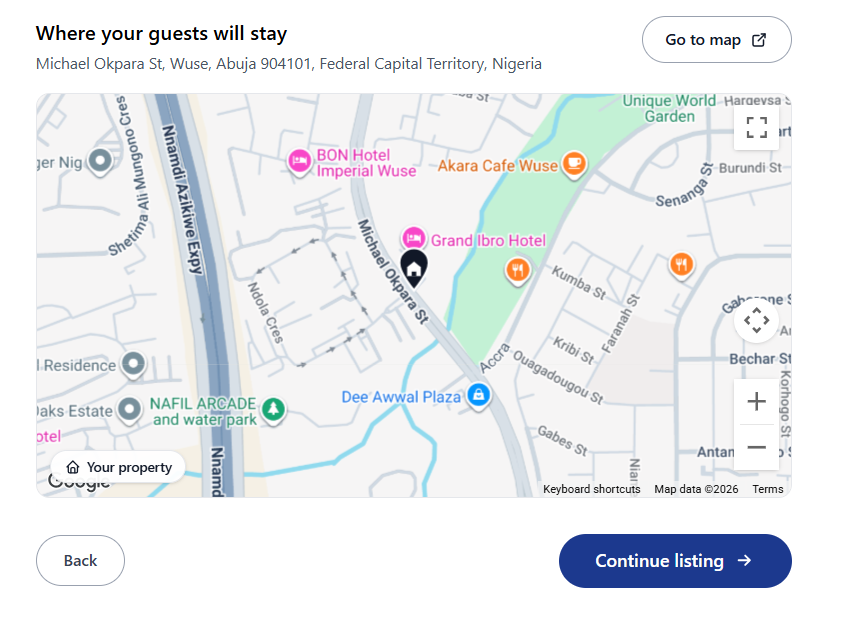
After entering your address, Ghecs displays a Google Map showing exactly where your property will appear to guests searching in your area.
Take a moment to verify the pin is in the right place. If the marker is off, you can adjust it before moving on. This step builds guest confidence , nobody wants to book a hotel and arrive somewhere unexpected.
Click Continue listing once you're satisfied.
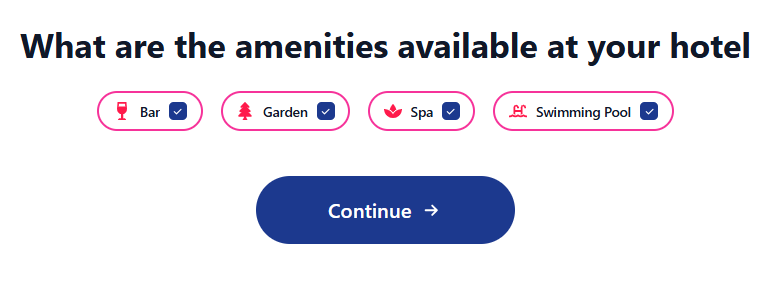
Step 4: Select Your hotel Amenities
Now it's time to showcase what your hotel offers. Ghecs lets you tick all the amenities available on your property:
Select everything that applies. Guests filter searches by amenities, so the more accurately you fill this out, the more relevant bookings you'll attract.
Step 5: Set Your Parking and Breakfast Options
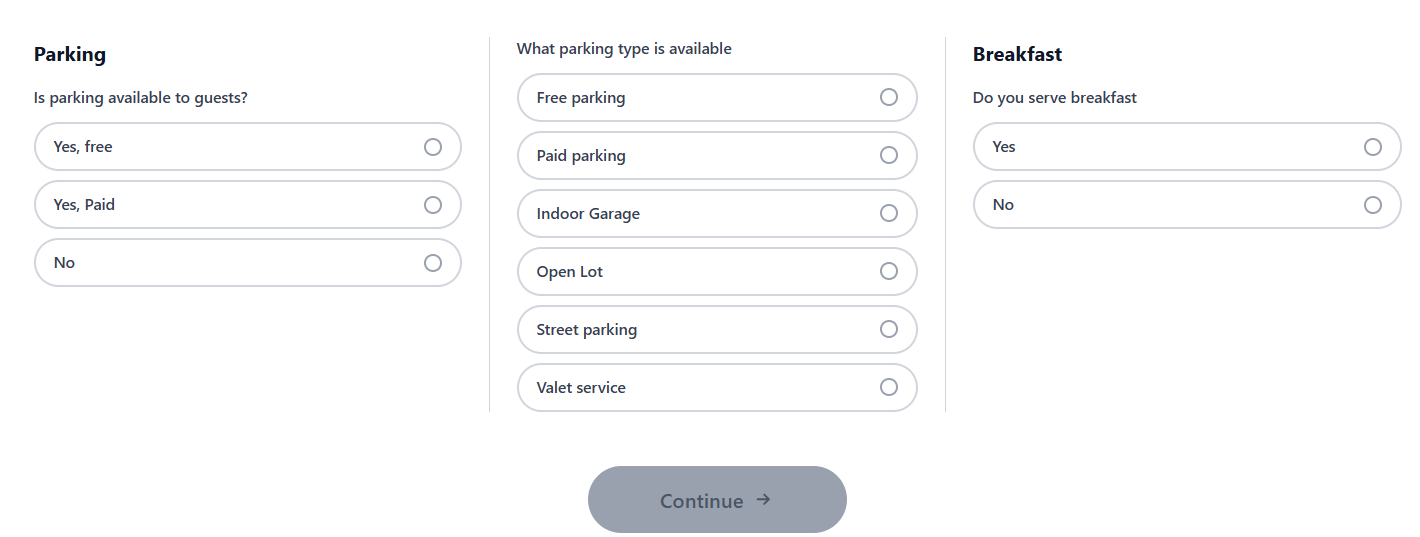
Two quick but important questions here:
Parking — Is parking available to guests?
Yes, Free
Yes, Paid
No
If yes, select the parking type: Free parking, Paid parking, Indoor Garage, Open Lot, Street parking, or Valet service.
Breakfast — Do you serve breakfast? Simply select Yes or No.
These are small details that make a big difference to travelers — especially business guests planning longer stays.
Step 6: Set Your Cancellation Policy, Booking Option, and House Rules
This step has three parts on one screen:
Cancellation Policy — Choose one:
Booking Option — Choose how guests book:
Instant Booking (guests book immediately without your approval — recommended for higher booking rates)
Request to Book (you review and approve each reservation)
House Rules — Toggle on or off
Set your
check-in time
quiet hours
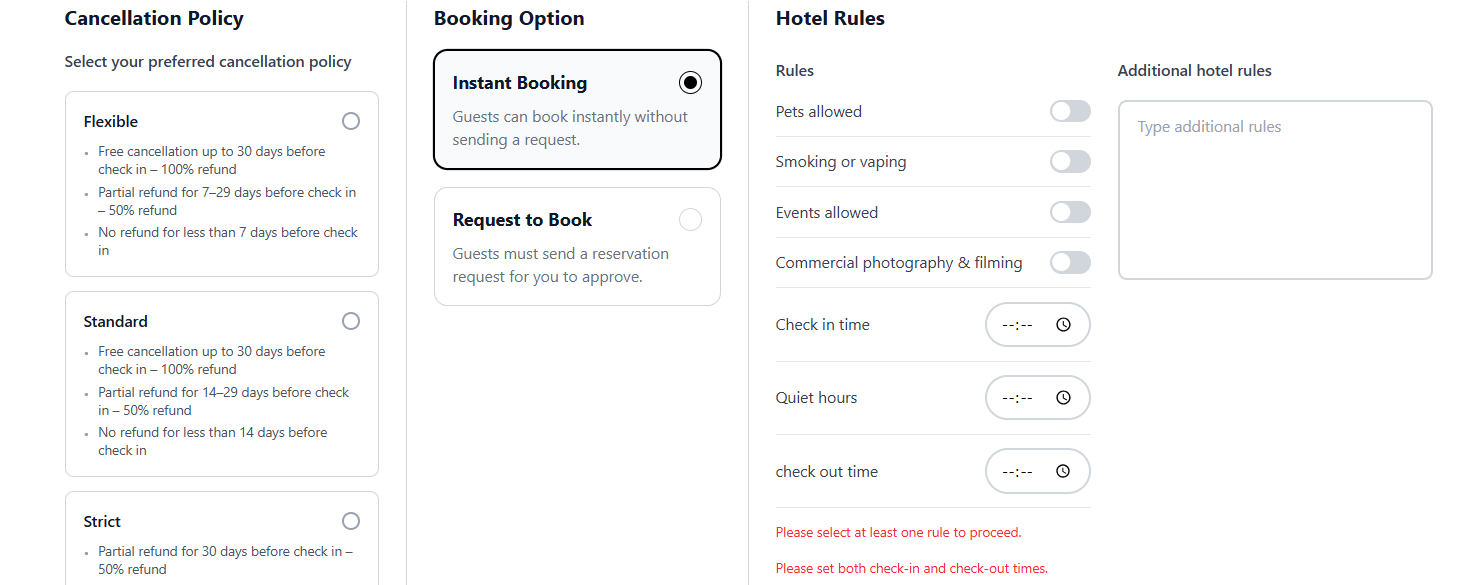
check-out time
Don't skip the check-in and check-out times — Ghecs requires both fields before you can proceed.
Step 7: Write Your Hotel Description
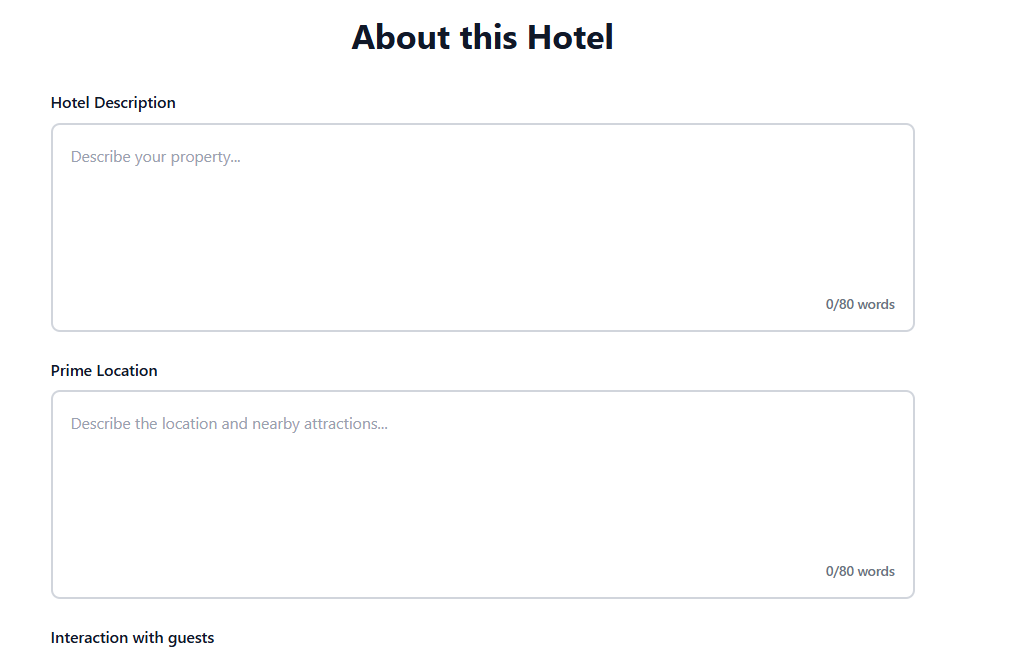
Here you have three text fields to tell guests about your hotel:
Hotel Description — Describe your hotel: what makes it special, who it's perfect for, what kind of experience guests can expect.
Prime Location — Tell guests what's nearby: business districts, landmarks, airports, shopping malls, major roads.
Interaction with Guests — How hands-on are you as a host? Do you have a 24-hour front desk? Will someone meet them at check-in?
Write these sections carefully. This is your sales pitch. A well-written description converts browsers into bookers.
Step 8: Add Your Rooms
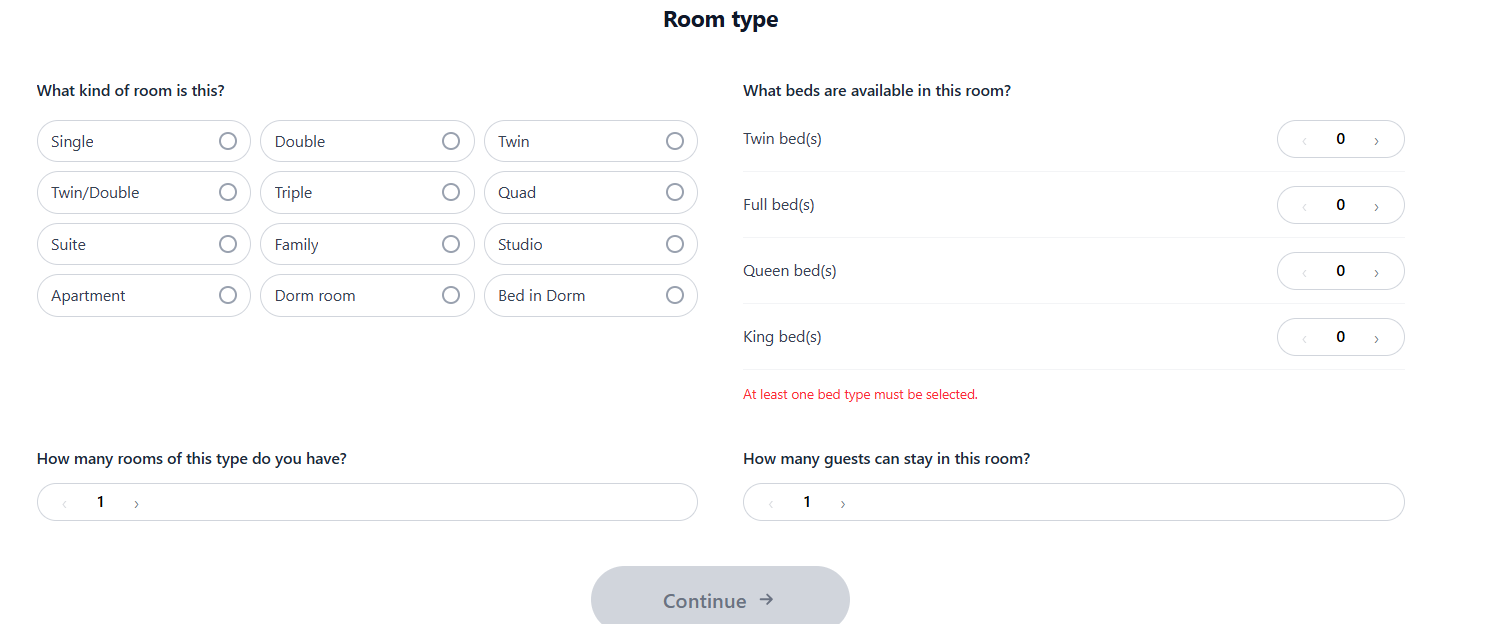
Now you build out your room inventory. For each room type, fill in:
Room name
(e.g., Deluxe King Room, Standard Double, Executive Suite)
Number of guests
the room accommodates
Number of beds
Number of rooms of this type
available
You'll set pricing in the next step.
Step 9: Select Room Amenities
For each room, tick the in-room amenities available:
You must select at least one amenity to proceed. Be thorough here in-room amenities are a major factor in a guest's booking decision.
Step 10: Upload Room Photos
Add clear, attractive photos of each room. You can drag and drop images or click Browse to upload from your device.
This step can make or break your listing. Guests decide in seconds whether to click on your property — great photos are the difference between a booking and a scroll-past.
Tips for good room photos:
Shoot in daylight or with all lights on
Make the bed neatly before shooting
Capture the full room, bathroom, and any special features
Use the highest resolution your phone or camera allows
Step 11: Set Your Room Pricing
For each room, set:
Nightly Rate:
Price per night (in Naira ₦)
Minimum nights
Maximum nights can go up to 365 days
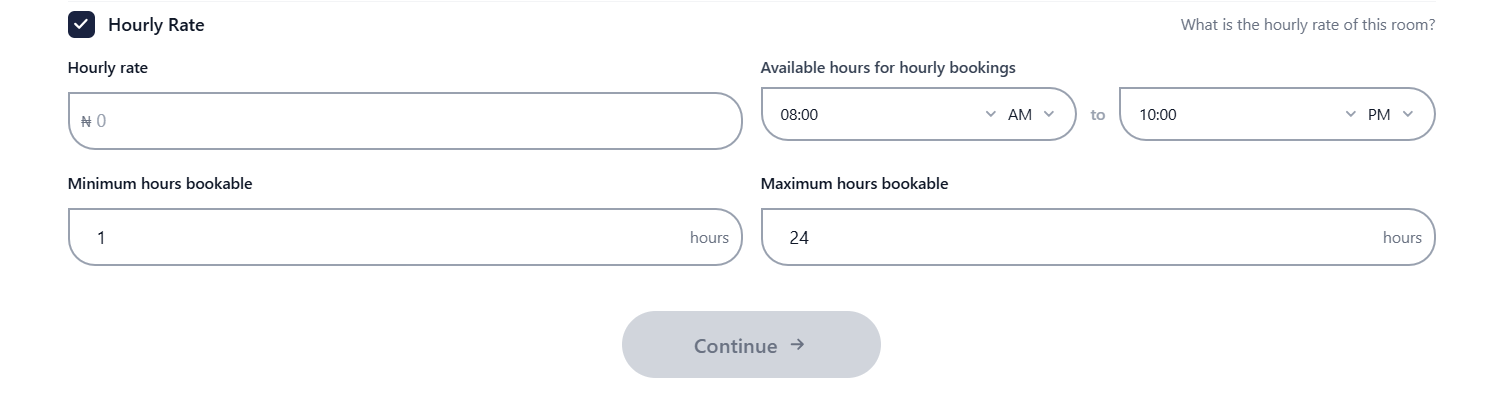
Hourly Rate (optional — tick the checkbox to enable):
Price per hour
Available hours for hourly bookings (e.g., 8:00 AM to 10:00 PM)
Minimum and maximum hours bookable
Hourly bookings are a great way to increase occupancy, especially for business travelers needing a room for a few hours between meetings.
Step 12: Review Your Rooms
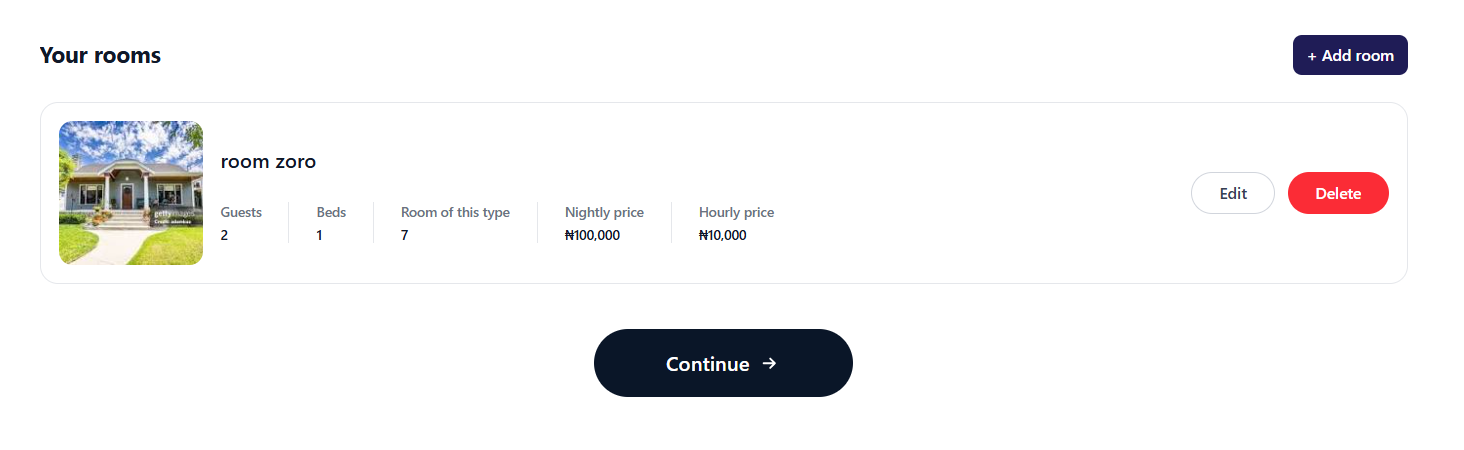
At this point, Ghecs shows you a summary of all rooms you've added — including guest capacity, beds, number of rooms of that type, nightly price, and hourly price.
From here you can:
Edit - any room to make changes
Delete a room
+ Add room to list additional room types
Review carefully before moving on. Once you're satisfied with your room setup, click Continue.
Step 13: Upload Hotel Photos
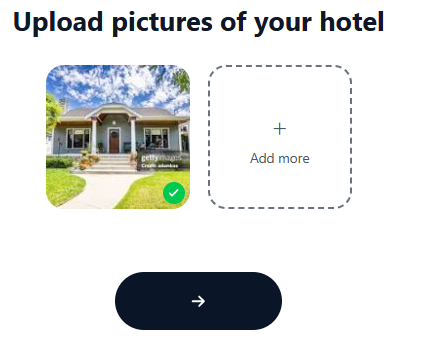
Now upload photos of the hotel itself — the exterior, lobby, facilities, and overall property.
Click the + button to add multiple images. You can continue adding photos until your gallery represents your hotel accurately and attractively.
Use at least 5–10 hotel-wide photos. Listings with more high-quality images consistently get more clicks and bookings.
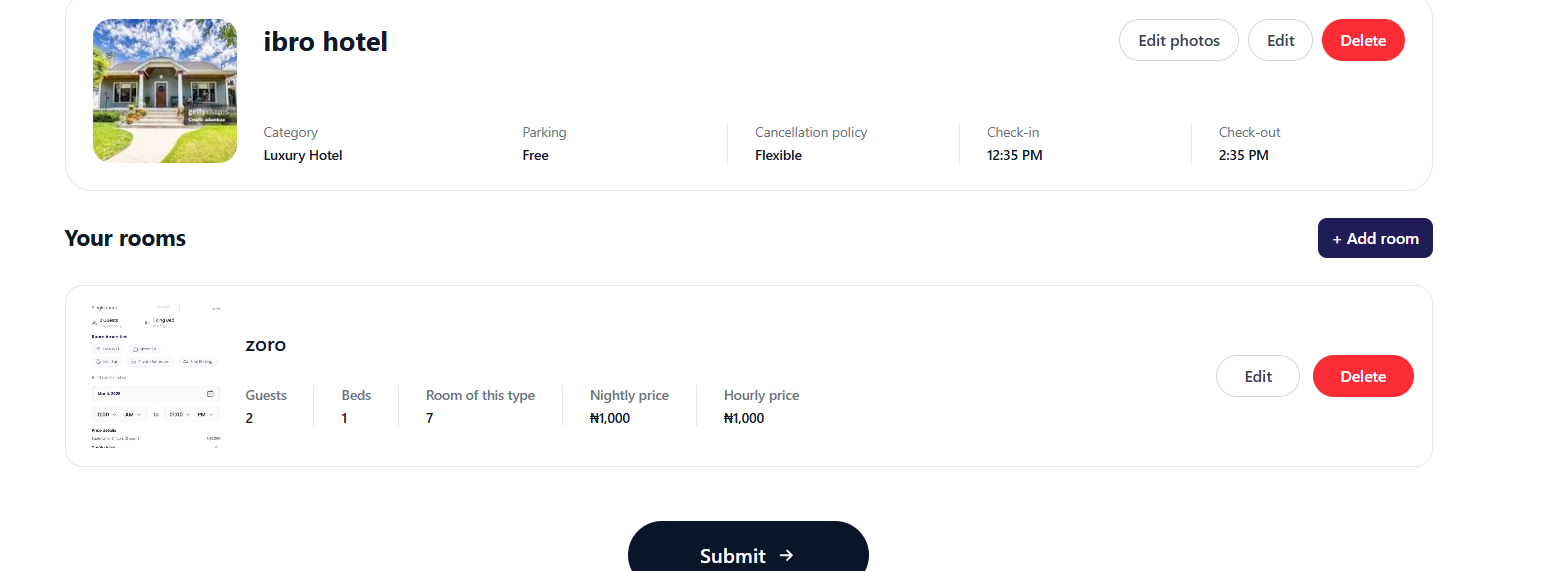
Step 14: Final Review — Then Submit
Ghecs shows you a complete summary of everything you've listed:
Hotel name, category, parking, cancellation policy, check-in/check-out times
All rooms with their details and pricing
This is your last chance to catch any errors. Check every detail — name, address, prices, policies, and photos. Make any edits needed by clicking Edit or Edit photos.
When everything looks good, hit Submit →
Step 15: KYC Verification — Your Listing Goes Live After This
After submitting, you'll see: "Property listed successfully — Your property has been submitted and is now awaiting review."
But you're not done yet. The next step is KYC (Know Your Customer) verification, where Ghecs requires:
A utility bill for the property
An image of the property
This is how Ghecs maintains trust on the platform — only verified hosts go live. Once your documents are reviewed and approved, your hotel listing goes live and guests can start booking.
You can manage your listing from the host dashboard while awaiting approval.
You're Live — Now What?
Once approved, your hotel will appear in Ghecs search results for travelers looking for accommodation in your city. Here's how to maximize your early performance:
Respond quickly to booking inquiries — fast response rates improve your ranking
Keep your calendar updated to avoid declined bookings
Ask early guests for reviews — social proof drives future bookings
Revisit your pricing after your first few bookings to stay competitive
Ready to Get Started?
Visit ghecs.com, create your host account, and follow the steps above. The entire listing process can be done in under an hour and once you're live, your hotel is visible to thousands of Nigerian travelers searching for their next stay.