How to Make a Reservation on GHECS.com (Request to Book Listings)
Ghecs
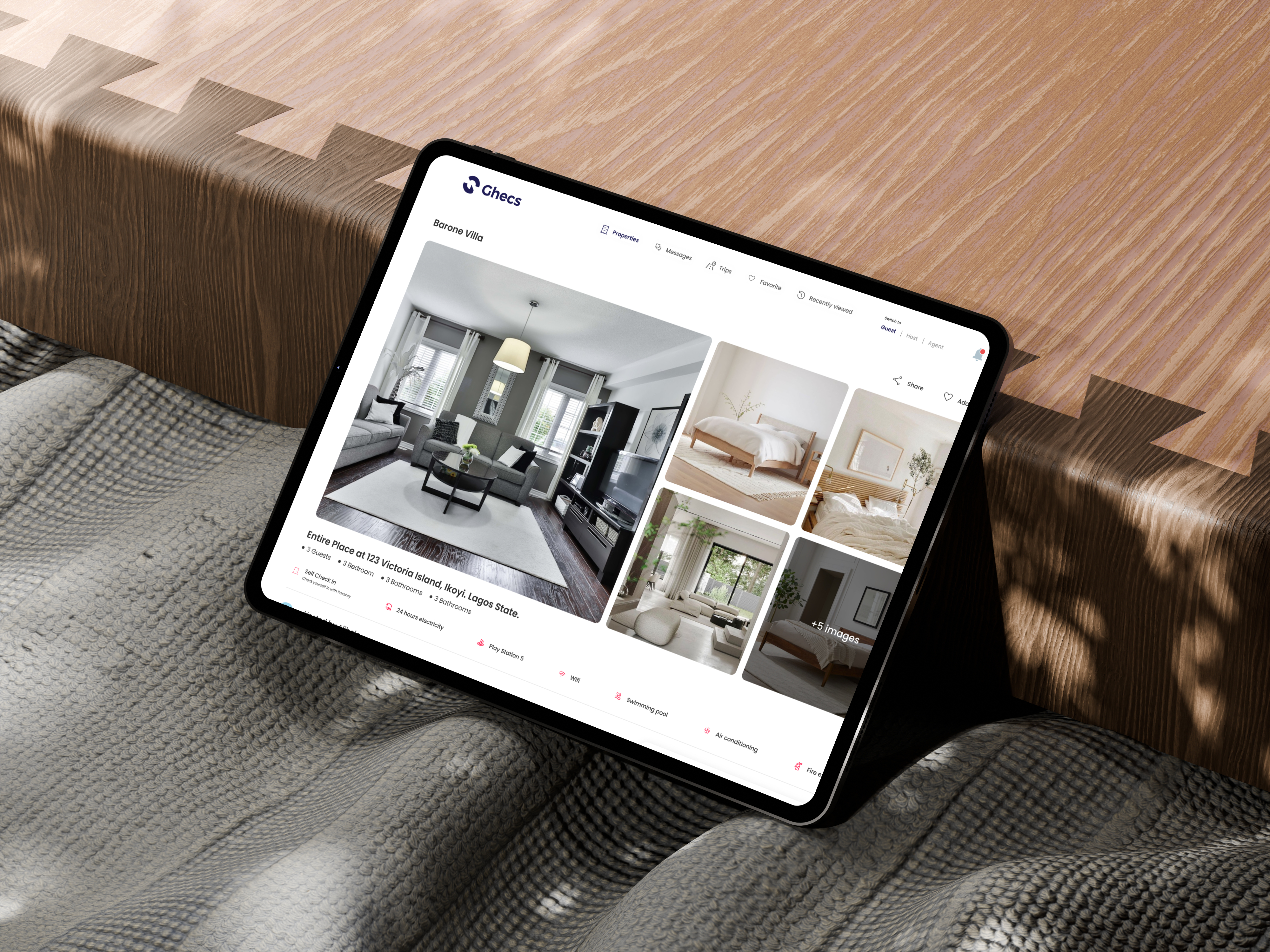
Finding the perfect short-let apartment, villa, or event space is exciting — but some listings on GHECS.com require you to request approval from the host before your booking is confirmed. This "Request to Book" flow protects both guests and hosts, ensuring every reservation is a great fit.
This guide walks you through the full process: from selecting your dates on a listing to seeing your reservation confirmed and making payment — clearly and simply.
Note: Not all listings require a request. If a property shows "Instant Book," your reservation is confirmed immediately after payment. This guide covers the Request to Book journey.
Step 1: Choose Your Dates & Guests
Open the property listing on GHECS.com. On the listing detail page, you will see a booking widget displaying the nightly rate. Tap the Check-In / Check-Out field to open the calendar and select your arrival and departure dates. Then use the Guests selector to set the number of guests staying.
Once your dates are set, the Price Details section will update automatically to show a full cost breakdown, including the nightly rate, number of nights, caution fee (refundable), sub-total, and total price — so there are no surprises.
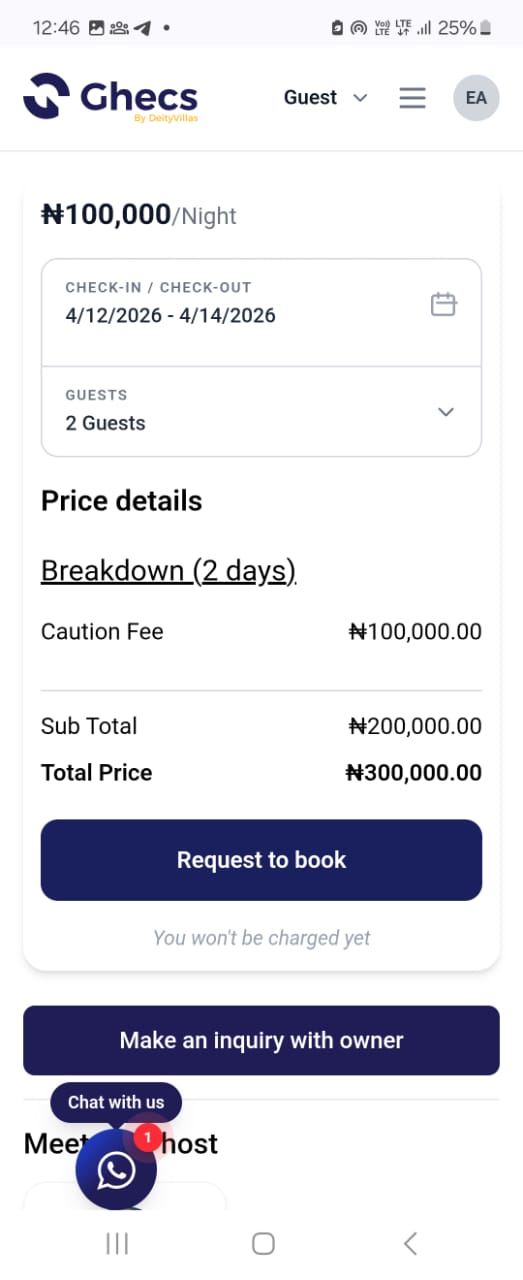
Step 2: Tap "Request to Book"
You should tap the Request to Book from step 1, your request is then sent to the host for review. GHECS automatically generates a message in your conversation thread with the host, showing your desired dates and a link to the listing. You can view this in the Messages section of your account.

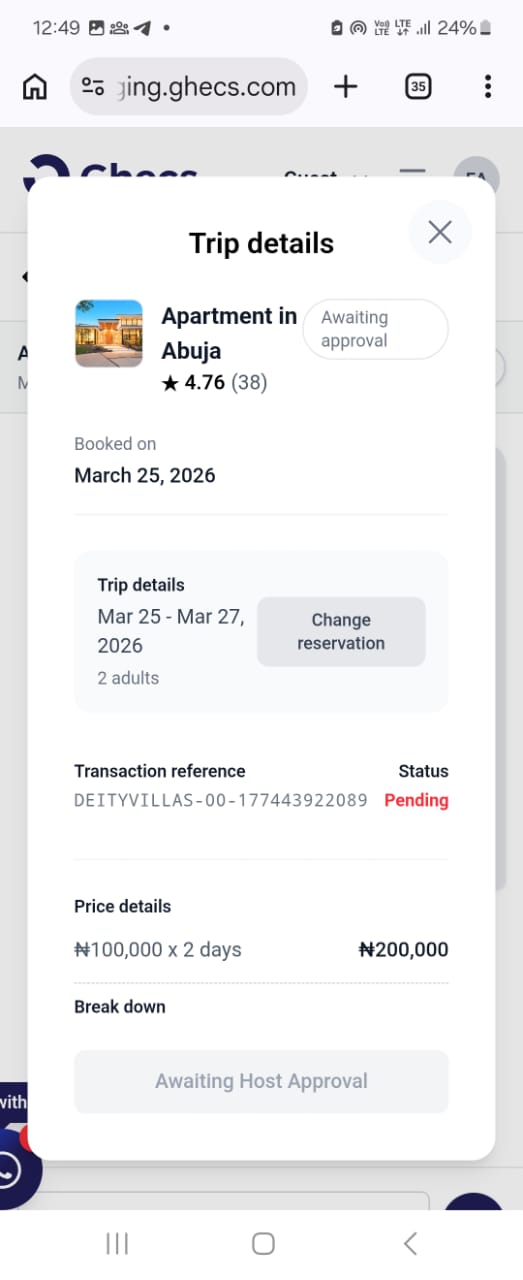
Step 3: Your Request is Sent to the Host
Your trip will appear in your bookings with a status of Awaiting Approval. A Trip Details modal will display your booking summary, transaction reference number, and the current status so you can track progress in real time.
Step 4: Host Approves — Proceed to Payment
Once the host reviews and approves your request, your booking status updates and you will be able to complete the reservation by making payment. Inside the Trip Details modal, the Proceed to Make Payment button becomes active.
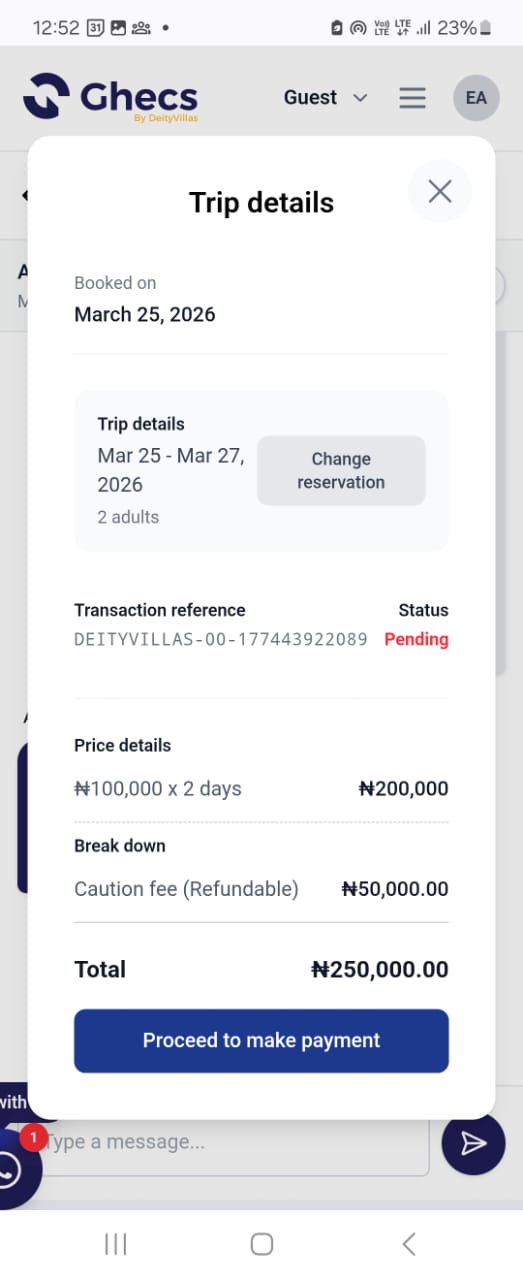
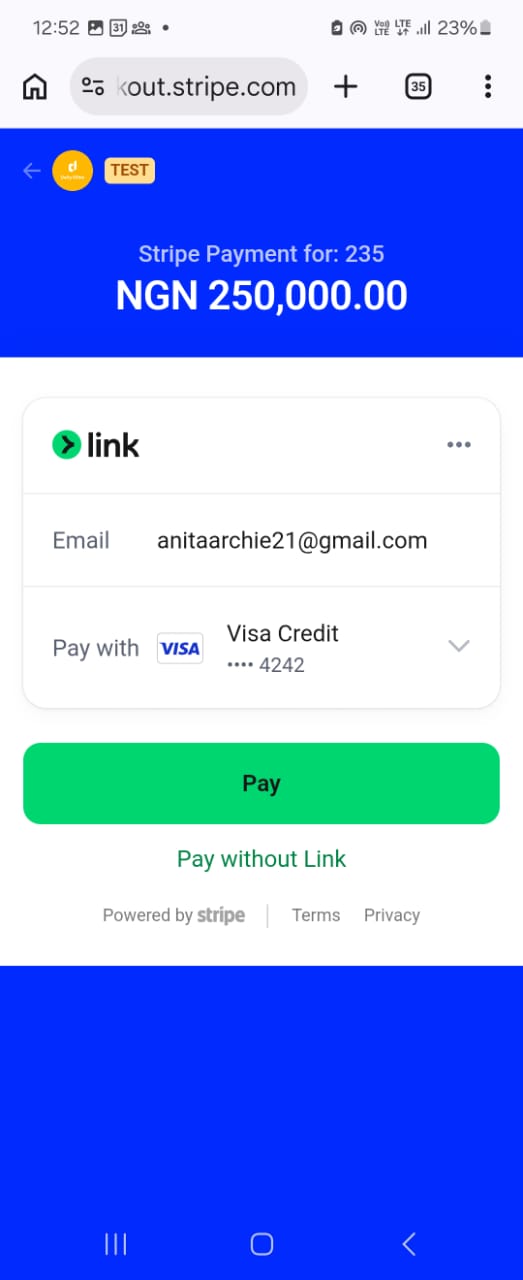
Step 5: Payment Portal
Tap the button to be directed to the secure Stripe payment page. Your total — including the nightly rate and caution fee — will be displayed. You can pay with a saved card via Stripe Link or enter new card details.
Step 6: Payment Complete — Reservation Confirmed
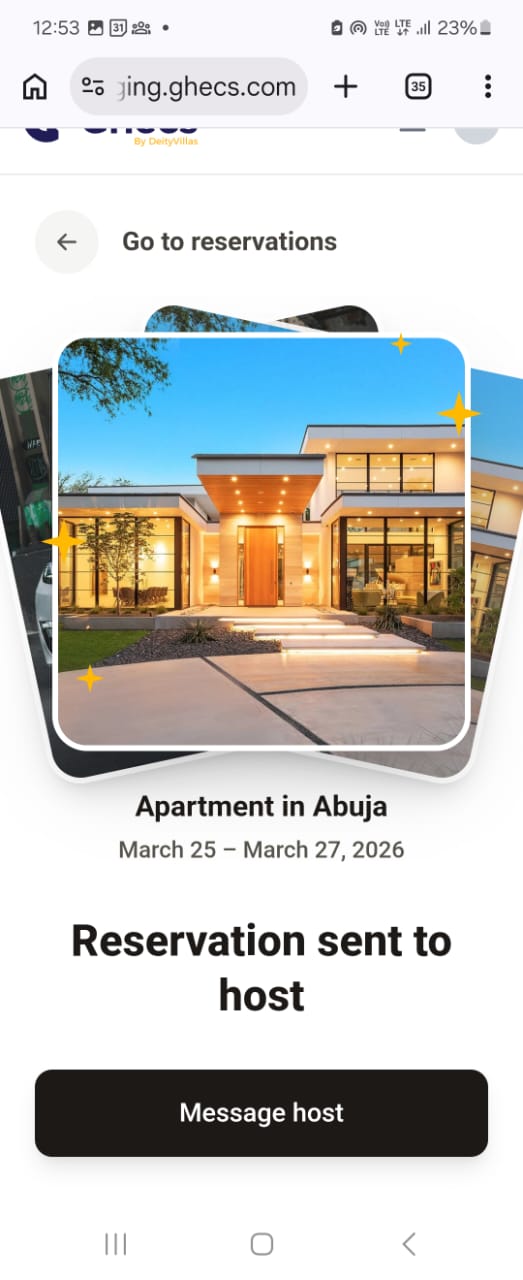
After successful payment, GHECS displays a confirmation screen: Reservation sent to host. Your booking is now officially confirmed. You can tap Message Host to coordinate check-in details or ask any final questions.
Your confirmed reservation will also appear in the Trips section of your GHECS account with all booking details, the transaction reference, and your check-in and check-out dates for easy reference.
Quick Recap
Select your dates and guests on the listing page.
Review the full price breakdown, then tap Request to Book.
Your request is sent to the host — you are not charged yet.
Once the host approves, tap Proceed to Make Payment.
Complete secure payment via Stripe — reservation is confirmed!
Tip: Keep an eye on your GHECS Messages inbox. Hosts typically respond within a few hours. If you need an urgent booking, look for listings with the Instant Book badge.
Ready to Book Your Next Stay?
Browse hundreds of verified short-let apartments, hotels, villas, and event spaces across Nigeria on GHECS.com. Whether you are planning a weekend getaway or a corporate stay, your perfect space is just a request away.
Visit www.ghecs.com to start exploring today.